> ## Documentation Index
> Fetch the complete documentation index at: https://relevanceai-docs-tsp-1344.mintlify.site/llms.txt
> Use this file to discover all available pages before exploring further.
# Language Model
> Access advanced settings related to the Language Model for your Agent
### Language Model
**What it is:** The AI engine that powers your agent's thinking and communication.
**How to choose:**
* **Default model:** Best for most use cases - balanced performance and cost
* **Advanced models:** May offer improved reasoning but at higher cost
* **Specialized models:** Optimized for specific tasks like coding or creative writing
If you're just getting started, stick with the default model. You can always upgrade later as your needs evolve.
***
### Maximum output tokens
**What it is:** Override how much content an agent's model can generate as part of its reasoning, decision making, and text generation. Explicitly setting a larger limit (8,000 or higher) may be required for agents performing complex tasks with many tools and large inputs.
**How to configure:**
* **Lower limits:** More concise responses, faster performance, lower cost
* **Higher limits:** More detailed responses, but may increase processing time
Adjust based on whether you need brief updates or comprehensive explanations from your agent.
Higher limits may incur more cost, and setting a value that exceeds the model's limit may cause the agent to fail.
***
### Temperature
**What it is:** A slider that controls how creative versus predictable your agent's responses will be.
**How to set it:**
* **Low (0-0.3):** More focused, consistent responses - ideal for factual tasks, customer support, or data analysis
* **Medium (0.4-0.7):** Balanced creativity and precision - good for general conversation
* **High (0.8-1.0):** More varied, creative responses - better for brainstorming, storytelling, or generating diverse ideas
**Example:** A sales agent might use lower temperature for explaining product specs, but higher temperature when brainstorming marketing ideas.
***
### Reasoning / Thinking
For supported models, you can configure how much the model reasons before responding. Reasoning uses output tokens to work through complex problems, which improves quality on hard tasks but is slower and costs more.
#### Thinking type and effort level
For supported Claude models, the Thinking setting has two controls: set **Thinking Type** to **Adaptive** to enable reasoning, and use **Effort Level** (Low, Medium, or High — up to Max on some models) to balance quality against speed and cost.
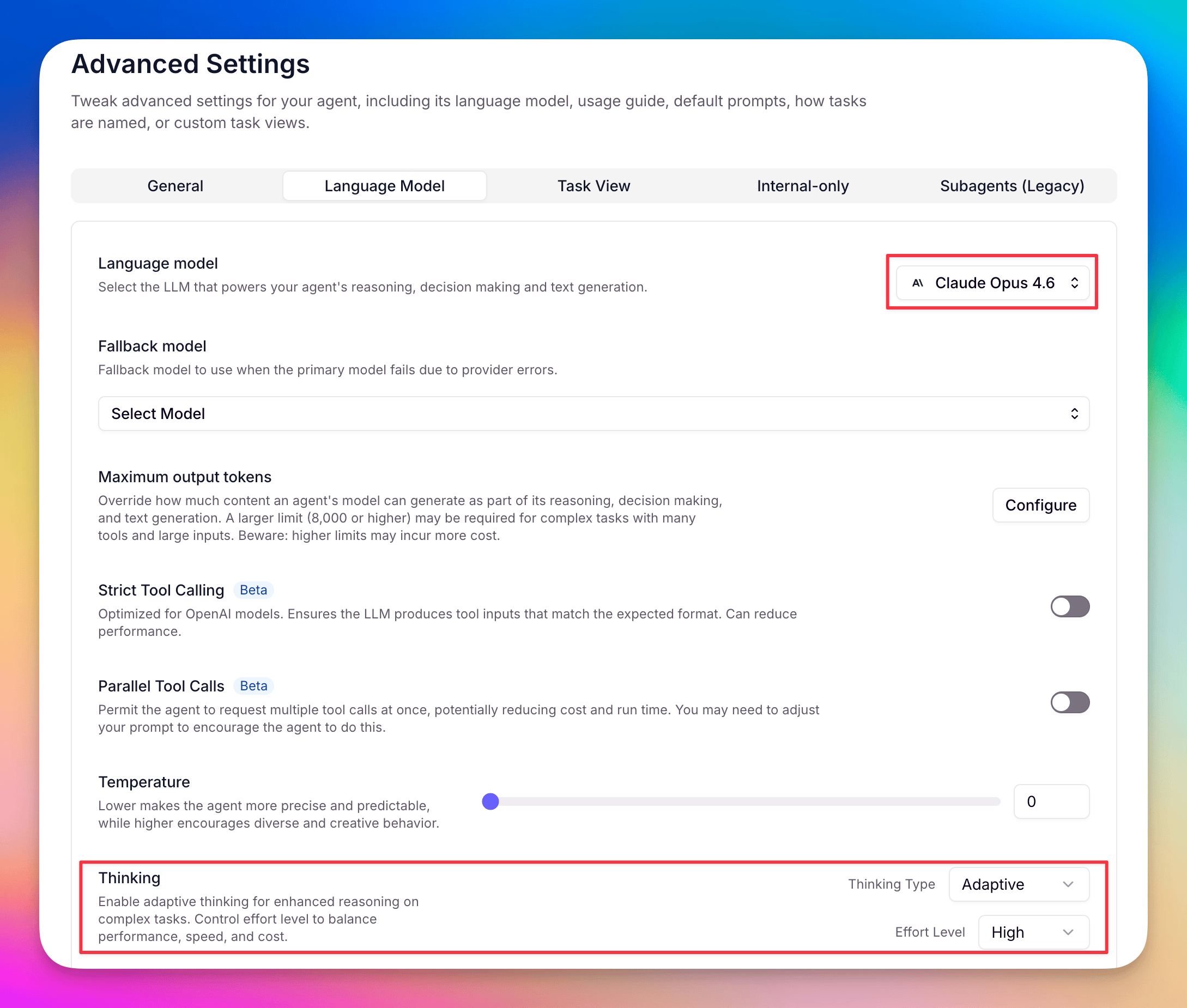 To reach these settings, go to **Agent → Settings → Advanced settings → Language Model**.
These controls appear on:
* Claude Opus 4.6, 4.7, and 4.8
* Claude Sonnet 4.6
Thinking tokens count as output tokens, not a separate category, so enabling reasoning increases your cost. Monitor usage when you turn it on.
***
### Parallel Tool Calls Beta
**What it is:** Allows an agent to execute multiple tools or hand off multiple tasks to other agents at the same time, rather than one at a time. When enabled, the agent can issue parallel tool calls in a single step, which can significantly reduce overall execution time for workflows with independent operations.
**When to use it:**
* Running multiple independent operations at once (for example, querying several data sources in a single step)
* Gathering information from multiple sources simultaneously
* Reducing overall execution time when individual tool calls don't depend on each other's results
* Parallel agent workflows in Workforces where sub-agents can operate independently
**How to configure:**
1. Open your agent and click **Advanced** in the bottom-left of the agent builder
2. In Advanced settings, go to the **Language Model** tab
3. Toggle on **Parallel Tool Calls**
4. For agent-to-agent handovers in the Workforce Builder: select the connection, open **Edge Settings**, and set **Task Behavior** to **Create new task**
If the agent is part of a Workforce, set all of its outbound connections to use **Create new task** as their Task Behavior to get the parallel speedup. The Workforce Builder highlights conflicting connections in yellow as a reminder. See [Edge Settings](/build/workforces/build-an-ai-workforce/edge-settings) for details on configuring Task Behavior for Workforce connections.
***
### Fallback model
**What it is:** A backup language model that automatically retries failed tasks when your primary model encounters errors or fails to respond. If your agent's primary model fails to complete a task, the fallback model will automatically retry the task **one time**. If the fallback model also fails, the task will fail as usual and follow your configured error handling behavior.
**When to use it:**
* Using models that occasionally have reliability issues (e.g., Gemini)
* Running critical workflows where you need higher reliability
* You want to reduce task failures due to temporary LLM provider issues
**How to configure it:**
1. Open your agent
2. Click **Advanced** in the bottom-left of the agent builder
3. In Advanced settings, go to the **Language Model** tab
4. Under **Fallback model**, select a model to rerun failed tasks on
Choose a fallback model from a **different provider** than your primary model. For example, if you're using Gemini as your primary model, select an OpenAI model (like GPT-5) as your fallback. This eliminates the chance of another provider-specific error and maximizes reliability.
To reach these settings, go to **Agent → Settings → Advanced settings → Language Model**.
These controls appear on:
* Claude Opus 4.6, 4.7, and 4.8
* Claude Sonnet 4.6
Thinking tokens count as output tokens, not a separate category, so enabling reasoning increases your cost. Monitor usage when you turn it on.
***
### Parallel Tool Calls Beta
**What it is:** Allows an agent to execute multiple tools or hand off multiple tasks to other agents at the same time, rather than one at a time. When enabled, the agent can issue parallel tool calls in a single step, which can significantly reduce overall execution time for workflows with independent operations.
**When to use it:**
* Running multiple independent operations at once (for example, querying several data sources in a single step)
* Gathering information from multiple sources simultaneously
* Reducing overall execution time when individual tool calls don't depend on each other's results
* Parallel agent workflows in Workforces where sub-agents can operate independently
**How to configure:**
1. Open your agent and click **Advanced** in the bottom-left of the agent builder
2. In Advanced settings, go to the **Language Model** tab
3. Toggle on **Parallel Tool Calls**
4. For agent-to-agent handovers in the Workforce Builder: select the connection, open **Edge Settings**, and set **Task Behavior** to **Create new task**
If the agent is part of a Workforce, set all of its outbound connections to use **Create new task** as their Task Behavior to get the parallel speedup. The Workforce Builder highlights conflicting connections in yellow as a reminder. See [Edge Settings](/build/workforces/build-an-ai-workforce/edge-settings) for details on configuring Task Behavior for Workforce connections.
***
### Fallback model
**What it is:** A backup language model that automatically retries failed tasks when your primary model encounters errors or fails to respond. If your agent's primary model fails to complete a task, the fallback model will automatically retry the task **one time**. If the fallback model also fails, the task will fail as usual and follow your configured error handling behavior.
**When to use it:**
* Using models that occasionally have reliability issues (e.g., Gemini)
* Running critical workflows where you need higher reliability
* You want to reduce task failures due to temporary LLM provider issues
**How to configure it:**
1. Open your agent
2. Click **Advanced** in the bottom-left of the agent builder
3. In Advanced settings, go to the **Language Model** tab
4. Under **Fallback model**, select a model to rerun failed tasks on
Choose a fallback model from a **different provider** than your primary model. For example, if you're using Gemini as your primary model, select an OpenAI model (like GPT-5) as your fallback. This eliminates the chance of another provider-specific error and maximizes reliability.